Registration Opens: Join the 2026 BECE Home Mock to Secure Grade 1s JOIN NOW ×

How to Fix “This Site Can’t Provide a Secure Connection” Error on Your Browser

This Site Can’t Provide a Secure Connection

Sometimes you want to visit a webpage, and you’re greeted with the message “This site can’t provide a secure connection”. This can be very frustrating and annoying, especially when you really need to visit the site.

This error typically occurs when your web browser encounters issues establishing a secure connection to a website. This error can occur for a lot of reasons, either the website does not have an SSL certificate installed or the browser uses an expired SSL certificate, when you install the SSL certificate but do not enable force HTTPS, incorrect date and time, firewall or antivirus, etc.

This issue is predominantly resolved by site owners, as they are responsible for the SSL certificate, but oftentimes, that is not the cause of the error. In this guide, we’ll walk you through how to resolve this problem.

Before you go about troubleshooting “This site can’t provide a secure connection”, you should confirm the error is from your end, and not from the site. To do this, you can check if the site has an SSL certificate and if the certificate is up to date. A secured site with an SSL certificate begins with https and has a padlock icon prefixed to it. Let’s see how to fix this error of “This site can’t provide a secure connection” step by step.

To check the status of the site SSL certificate, if it is valid or expired, follow the steps below.

  • Click on the padlock icon and select Connection is secure.
This Site Can’t Provide a Secure Connection
  • Click on Certificate is valid.
This Site Can’t Provide a Secure Connection
  • This will provide information about the certificate, watch out for its expiry date. If the certificate has expired, that explains your trouble, and at this point, contact the website owner to inform them of the issue if you can.
This Site Can’t Provide a Secure Connection

Where the SSL certificate is valid, the first thing you should do is try reloading the page as the error is sometimes temporary. If this does not fix the problem, then you can proceed to the steps below in this guide.

ALSO READ: 5 HIGHEST PAYING JOBS IN THE WORLD, CHECKOUT NUMBER THREE

Set up HTTPS in your browser

Browsers now allow a way to set up HTTPS in your browser by default. In Chrome, follow these steps.

  • Go to settings on your Chrome browser.
This Site Can’t Provide a Secure Connection
  • Go to privacy and security and select security.
This Site Can’t Provide a Secure Connection
  • Scroll to the bottom, and turn on the Always use secure connections.
This Site Can’t Provide a Secure Connection

Clear Browser Cache and Cookies

Outdated or corrupted cached data can cause issues. Clear your browser’s cache and cookies from the settings menu. This can also one element of the issue of  the site can’t provide secure connection

  • Go to your Chrome settings.
  • In your settings, select privacy and security and select clear browsing data.
clear browsing data
  • You can adjust the time range as you desire, then click on clear data to clear the cache and cookies. You can navigate to Advance if you want to have full control of your actions.
clear data 

Disable the firewall or antivirus

Your firewall or antivirus software can sometimes cause this error. You can temporarily disable your firewall or antivirus software to see if they are causing the issue of the site can’t provide a Secure Connection. To disable them, this is how to go about it.

  • On your Chrome browser, click on the three vertical dots, scroll down to Extensions, toggle it and click on Manage Extensions.
Disable the firewall or antivirus
  • You’ll find a list of installed extensions, find the firewall or antivirus software and disable them.
installed extensions

Update your device date and time

Inaccurate date and time can also cause SSL errors on browsers. If you encounter this error, you should check and confirm your device date and time in the settings are up to date. If it isn’t, you should ensure to make the update.

Disable QUIC protocol

While QUIC allows you to establish a connection faster and negotiates all HTTPS settings when you connect to a site, it can cause SSL connection issues sometimes. To disable QUIC protocol in the Chrome browser, here is how to go about it.

  • On the search bar, type chrome://flags/#enable-quic
  • On the experimental QUIC protocol, toggle the and click on disabled.
Disable QUIC protocol
  • Close the browser and launch it again.

Conclusion

Encountering this error  “This site can’t provide a secure connection” can be frustrating, but it’s a sign that your browser is doing its job of protecting you from potential security risks. By following the steps outlined in this article, you can often resolve the issue and safely access the websites you need.

How to find and change your IP address on a Windows device

How to find and change your IP address on a Windows device

Your IP address is a crucial element of your internet connection. How to find and change your IP address on a Windows device. It acts as a unique identifier for your device on the internet, allowing it to send and receive data. How  to you find it? How is your IP address looks like?

There are various reasons you might want to change your IP address, whether it’s for troubleshooting network issues, enhancing security, or accessing region-restricted content.

Whatever reason you find and change your IP address is entirely up to you, and contrary to the popular misconception, changing your IP address is not illegal. In this guide, we’ll walk you through how to get this done.

READ ALSO : 5 Highest Paying Jobs In The World, Checkout Number Three

How to find your IP address

  • Open the Command Prompt as administrator.
How to find your IP address
  • Run the command ipconfig on the terminal. A bunch of results will pop up, but look for IPv4Address the number by the side is the IP address.

How to find your IP address

How to change your IP address (Windows 10)

There are various ways to achieve this, but we will focus on two, namely: using network settings and using VPN. Let us walk through them and get to where you can find and change your IP address.

Using network settings

  • Locate the settings on your Windows laptop.
  • Select Network & Internet
How to change your IP address (Windows 10)
  • Select status, and by your right of the tab, scroll down and click on change adapter options.
How to change your IP address (Windows 10)
  • When you select this, your connections (disconnected and active) will be made available to you. Right-click on your available connection and select properties.
How to change your IP address (Windows 10)
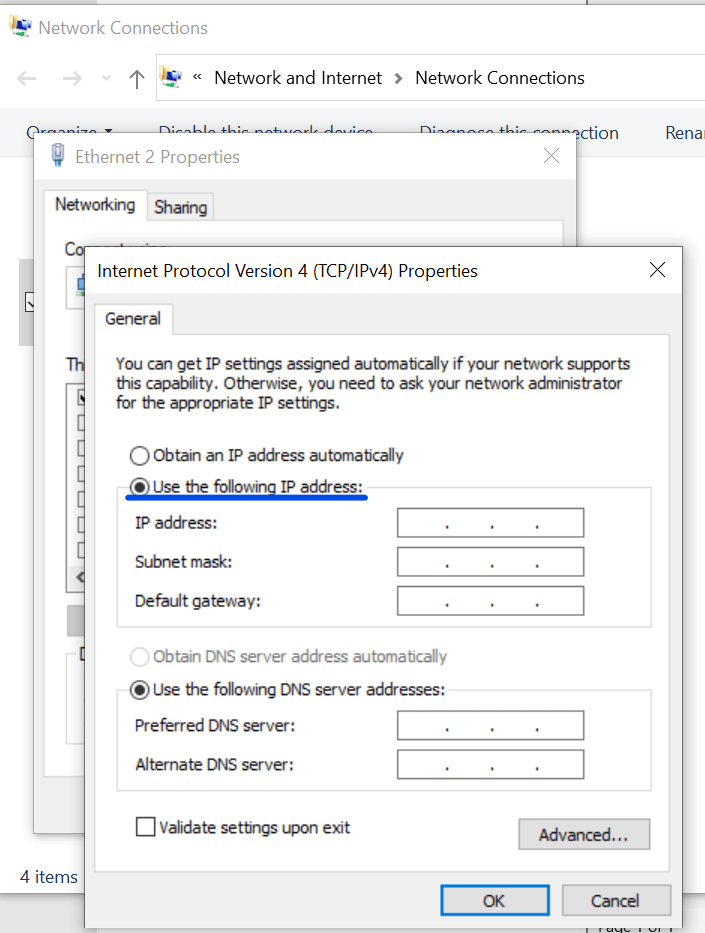
  • Scroll down and then select Internet Protocol Version 4 (TCP/IPv4) and click on Properties. If other boxes are checked, uncheck all.
Internet Protocol Version 4
  • Click on the checkbox use the following IP address, and then enter your desired IP address, Subnet mask, and Default gateway.
Internet Protocol Version 4
  • Click on the Validate settings upon exit to ensure your values are valid. If valid, select the OK button, and that is all.
Internet Protocol Version 4

Using VPN

This method is very straightforward because all you have to do is download and install a VPN service of your choice. Create an account and get started.

It should be noted that VPNs do not change your IP address, rather, your IP address remains hidden while you use the VPN. If security is your reason for changing your IP address, using a VPN is a viable and better alternative.

Each VPN comes with different methods to use, so go through the VPN guide on how to use the VPN in your browser.

Conclusion

Changing your IP address on a Windows device is actually very easy and enhances security. Before you do this, you should be certain of the reasons and explore alternatives that suit them.

Beautiful lady Of Gorgeous Level 300 UEW Student Who Committed Suicide

Beautiful ladyOf Gorgeous

A very beautiful lady level 300 student of the University of Educa9tion, Winneba, has taken over the trends after tragic event of committing suicide.

The sad news about the  pretty passed on lady, identified as Rita, reportedly hanged herself in her apartment.

Read Also: Enough Is Enough: Lydia Forson Speaks About Bad Leadership In Ghana

The motive for her suicide at this moment is perplexing.

UTV Ghana reported on the sad news with their correspondent giving more details of what transpired.

Per his narration, a colleague of the pretty  Rita known as George claims to have seen a photo of her hanging in her room, leading him to rush to her apartment.

On arrival, George met the caretaker of the place and informed him of his suspicions, to which they entered her room and found her hanging.

This led to a report to the actual landlord, who then got the police involved.

Following her suicide, the beautiful photos of Rita have emerged online, causing a stir amongst neitzens.

READ ALSO : Best effective ways to manage a troublesome class as a teacher.

However, it appears some people have suspicions over the manner of the pretty Rita’s reported suicide.

One X user laid out his suspicions, writing: “I have a question. If the Beautiful  lady  supposedly posted a picture of her suicide on a group platform, at what time did she do that? If it was not on live broadcast, the video or image must load before sending. I suspect a foul play cos a ded person can not post such a picture,”

Coup d’état in Ghana, but what’s saving us is tolerance of citizens – Asiedu Nketia

Ghana is ripe for a coup d’état

The Chairperson of the NDC, Johnson Asiedu Nketia, has raised possible coup d’Etat because of the state of Ghana’s democratic stability due to the economic crisis.   According to him, although time is long overdue for the Coup d’état in Ghana and the return of autocratic governance. What is keeping Ghana from descending into chaos … Read more

How to Secure Your Valuable Digital Documents

Securing-Your-Valuable-Digital-Documents

In Summary Understanding Digital Document Security Common Threats to Digital Document Security Strategies for Securing Digital Documents Document Security Technologies I. Understanding Digital Document Security In today’s digital world, the importance of securing your valuable digital documents cannot be overstated. Digital documents encompass a wide array of file types, including PDFs, Word documents, spreadsheets, and … Read more

10 Best Computer Applications for Business

Processing the right software for business use can save you a lot of time and effort. Unfortunately, trying out so many computer applications can be an inconvenience. Computer Applications Concept. Business In Summary Time Tracking Software                                        … Read more

Sound Sleep: Strategies for a Restful Night

Sound-Sleep-Strategies-for-a-Restful-Night

Getting a Sound night’s sleep is important for all inclusive health and well-being. Whether you’re a chronic insomniac or simply seeking to optimize your sleep, here are some sound sleep strategies to help you ameliorate your sleep for a restful night: Sound-Sleep-Strategies-for-a-Restful-Night In Summary The Power of a Consistent Sleep Routine: Establishing Healthy Sleep Patterns … Read more

Astuce Of Advantages of Using LED driving lights

Advantages of Using LED lights

There are many attachment that gain popularity and significance in no time and LED driving lights are one such light. They have attained a lot of momentousness because of their numerous advantages over traditional halogen or even incandescent lights. Once you read through this post, you would want to explore Sunyee: Your Source for High-Quality LED … Read more

Ghana Education News