Release of February 2026 BECE Home Mock Results and Registration for March Super Mock
The Education-News Consult is pleased to announce that the results of the February 2026 BECE Home Mock will be out on Monday, March 2nd, 2026, for all subjects at exactly 8pm. Parents who submitted their scripts for marking and grading can check their results on the result portal at https://beceprep.com/check-results.php
Per our data, nearly 40 percent of parents did not return scripts for Mark. We would not be able to mark all scripts sent late. Such scripts have continued to negatively impact our work and timely delivery of results. The February examination was not an exception when it comes to delays in submitting of scripts, marking, and grading.
New Smart portal for March Super Mock
Ahead of the release of the results for February, the registration for March Super Mock 1 has also started.
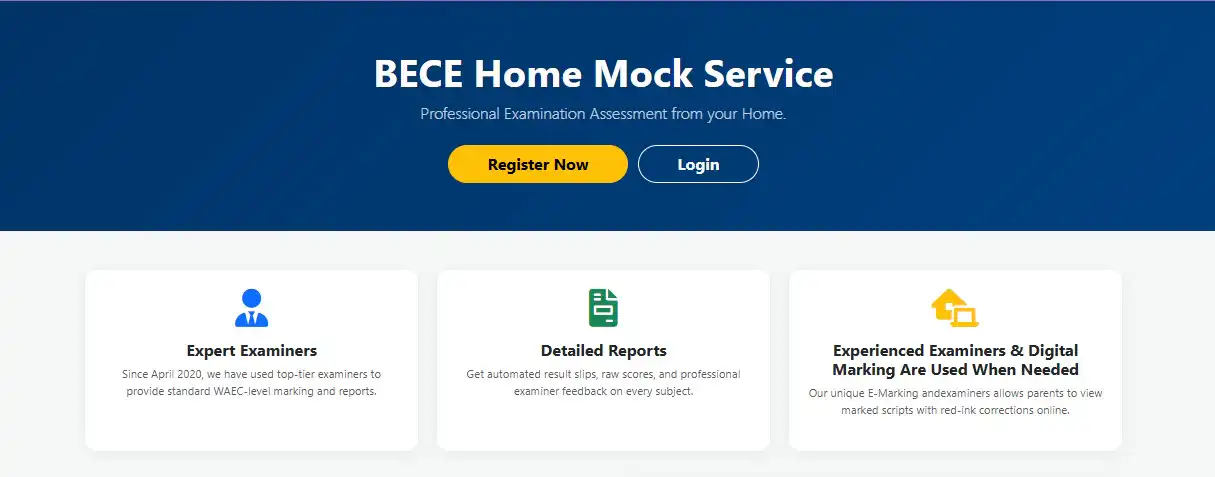
Effective March 2026, Education-News Consult will run all mocks through its smart BECE Home Mock portal at https://skulmanager.com/Homemock/index.php
This guide provides a comprehensive walkthrough of the BECE Home Mock Portal at https://skulmanager.com/Homemock/index.php. Whether you are a new parent looking for professional assessment or an existing client starting a new month, follow these steps to ensure a successful mock session.
1. Getting Started: Registration & Packages
New clients must first register their candidates. Since April 2020, Education-News Consult has provided WAEC-standard marking to help students identify their weaknesses before the actual BECE.
- URL: https://skulmanager.com/Homemock/index.php
- Waiver Tokens: If you are a returning “existing parent,” ensure you get a TOKEN from Education-News Consult so you can enter it to remove the registration fee from the system; this way, you will not be asked to pay another registration.
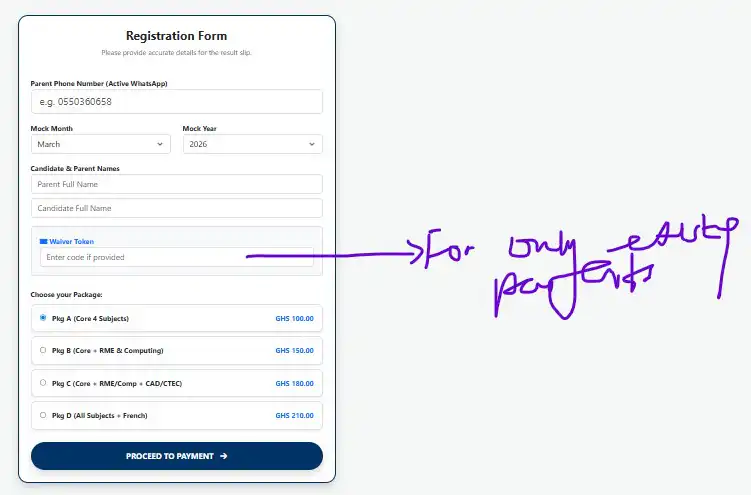
- Package Options:
Choose from Package A (Core 4) to Package D (All Subjects + French) based on your needs.

Once you complete payment, you will receive an SMS to that effect. Per the new system, your student can start the mock even ahead of the others for subjects uploaded and downloadable for each month. Examiners will see your uploaded file in their dashboards and start marking. This means we are not going to wait for every parent to submit scripts before we start marking
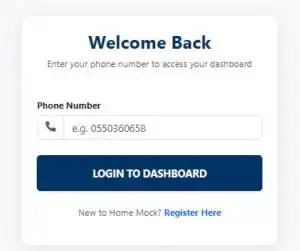
The login page or session looks this simple, and all you need is your phone number to access the dashboard. Go here to login: https://skulmanager.com/Homemock/login.php
2. The Parent Dashboard
Once payment is confirmed, you will be directed to your personalized dashboard. This is your “Examination Center” and control hub. You can also log into the dashboard using your phone number after paying for the mock.
- Key Feature: The dashboard is mobile-responsive. Use the Sidebar Menu to quickly navigate between the Dashboard, Exam Procedures, and the Submission Guide.
- Session Info: Your dashboard always displays your current candidate’s name and the specific mock month (e.g., March 2026) you are enrolled in.
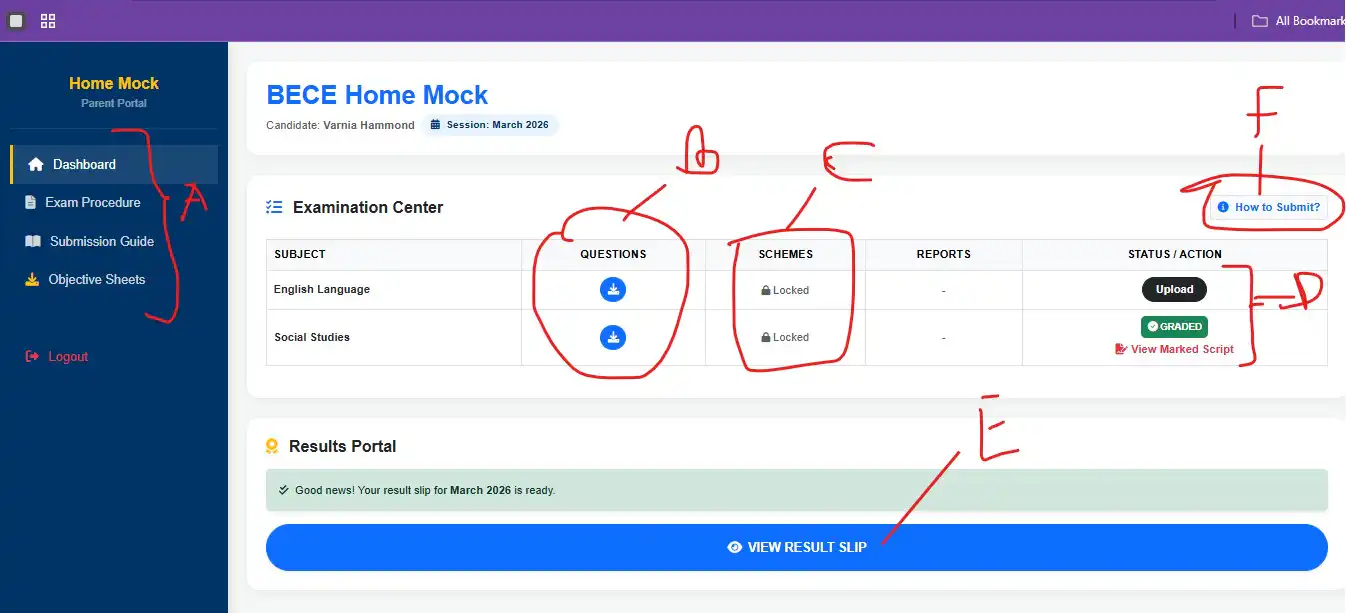
In the dashboard, parents will see all the smart features.
- The section labeled “A” is the sidebar menu where the exam procedure can be found.
- It has the submission guide and the objective test sheet to be downloaded and used for the section A
The section labeled “B” is where parents see all uploaded questions for a given month. For the month of March, English Language and Social Studies questions have been uploaded already, and parents who are registered can download and let their wards start taking the test without any delays.
The section labeled “C” is the schemes for the mock upload; when activated or unlocked by Education-News Consult, parents can download them for their wards easily. The same applies to the uploaded examiner’s report.
At the Status section with the letter “E,” parents have to click it and upload the pdf version of the script for the respective subjects for marking. As soon as the assigned examiner marks and updates the results, it will turn to graded. The “F” section explains how to submit the scripts.
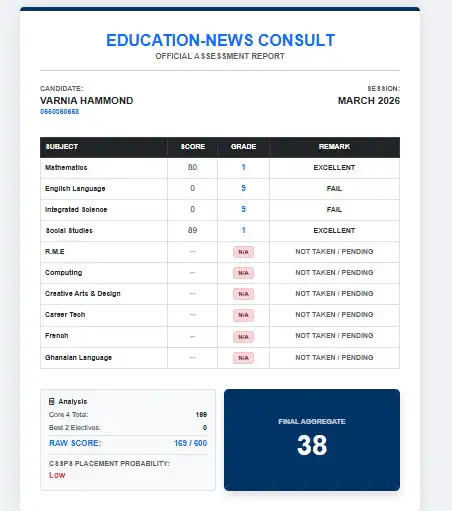
At the “E” session, parents can click on the button to view the results. Below is how the result portal looks: Below is a dummy result.
3. Pre-Exam Preparation
Before the student sits for the exam, you must prepare the materials.
- Download Questions: In the “Examination Center” table, click the blue download icon under the Questions column for each subject.
- Objective Sheets: Download and print the official Section A Answer Sheet from the sidebar.
- Read the Procedure: Familiarize yourself with the Exam Day Protocol via the sidebar. It is vital that parents act as strict invigilators to maintain exam integrity.
4. Taking the Exam at Home
To simulate a real WAEC environment:
- Environment: Use a quiet room with no textbooks or gadgets.
- Timing: Follow the strict duration on the question papers (usually 1 hr 45 mins or 2 hrs).
- Sequence: The candidate should start with Section B (Theory) and then move to Section A (Objectives).
5. Scanning and Submission
Once the exam is over, you must convert the physical papers into a digital PDF for our examiners.
- The App: We recommend Clear Scanner (Android/iOS).
- Batch Mode: Always use Batch Mode so that all pages of a subject are in ONE single file.
- Naming Convention: This is critical. Name your file: Student Name + Subject + Parent Phone.
- Example: Kofi Mensah – Mathematics – 0244000000
- Upload: Go back to your Dashboard and click the Upload button next to the subject to submit the script.
6. Checking Results & Marked Scripts
One of our most powerful features is the Digital E-Marking Engine. Our top examiners grade your scripts with “digital red ink” so you can see exactly where marks were lost.
- Graded Notification: When marking is finished, the status on your dashboard will change to a green GRADED
- View Marked Script: Click the link under the badge to see the annotated PDF with examiner corrections.
- Official Result Slip: Click the VIEW RESULT SLIP button at the bottom of your dashboard.
- Features: View your Aggregate Grade (Core 4 + Best 2), your Total Raw Score (out of 600), and your Placement Probability (Category A, B, or C schools).
Important Links Summary
- Registration/Login: https://skulmanager.com/Homemock/index.php
- Parent Dashboard: https://skulmanager.com/Homemock/dashboard.php
- Parents log in at https://skulmanager.com/Homemock/login.php.
Support: If you encounter any issues, please contact Education-News Consult directly through the WhatsApp 0550360658 number provided during registration.