
Chrome flags are experimental features in Chrome, which allow you to test features before they’re added to Chrome. These features are usually internal versions or are being tested in Beta/ Dev/ Canary channels of the browser.
The experimental flag features can be used on Chrome browsers running on platforms like Windows, Linux, Chrome OS, Android, and Fuchsia. Now that you’ve learned what a Chrome flag is, let us take a look at how you can enable it on your device.
Here is how you can enable, disable, and use some of the best Chrome flags.
Auto Dark Mode for Web Contents

Many users prefer using dark mode on their phones, and while Google is expected to roll out this feature in a stable release in the coming months, you can enable Dark Mode under this experiment.
This will automatically render all web content in dark mode, including the ones that don’t support a native dark mode. It is also worth mentioning that since Dark mode is force-enabled on some websites, the content might not be visible at times.
READ MORE: 2023 NOVDEC (WASSCE PC) Government Trial Questions
CHEAP NON-EXPIRING DATA
Buy affordable data bundles that never expire. Reliable and Instant Delivery!
BUY CHEAP DATA NOW
Supported platforms: Windows, Linux, Chrome OS, Android, Fuchsia, Mac, Android
URL: chrome://flags/#enable-force-dark
EXCEL IN YOUR EXAMS
Get instant access to the most reliable Mocks and Marking Schemes.
BUY TOP 2026 BECE MOCKS AND ANSWERSSmooth Scrolling

If you are not satisfied with scrolling on your Chrome browser, you can enable this feature for a smoother scrolling experience. This experiment allows the page to animate smoothly when scrolling page content. It is a very handy feature for Android users, but it is available for other platforms too.
Supported platforms: Windows, Linux, Chrome OS, Android, Fuchsia
URL: chrome://flags/#smooth-scrolling
Touch UI Layout

For those who are used to Chrome’s touch screen usability on Android and iPhones, this flag allows you to enable a Touch UI layout for laptops and Chromebooks with touch screen support. This feature will make interaction with the machine more interactive and intuitive.
Supported platforms: Windows, Linux, Chrome OS, Android, Fuchsia, Mac
URL: chrome://flags/#top-chrome-touch-ui
Experimental QUIC Protocol

QUIC is Google’s general-purpose network protocol, which reduces latency and speeds up the browsing experience in Chrome. Once you enable this feature, your browsing speed will go up on sites that are well-optimized.
Supported platforms: Windows, Linux, Chrome OS, Android, Fuchsia, Mac, Android
URL: chrome://flags/#enable-quic
GPU Rasterization

If your device comes with a dedicated GPU, this feature will help you speed up Chrome and improve the overall performance of the browser. Enabling this feature will take some load off the CPU and GPU will take a bit of load to speed things up. In simple terms, this will use GPU to rasterize web content.
Supported platforms: Windows, Linux, Chrome OS, Android, Fuchsia, Mac, Android
URL: chrome://flags/#enable-gpu-rasterizatio
Enable Reader Mode

For those who consume a lot of readable content on the web via e-books, websites or blogs, enabling this reader mode flag will display a simplified web page. With this mode, you will automatically move away from ads, videos and other disruptive content.
Supported platforms: Windows, Linux, Chrome OS, Android, Fuchsia, Mac
URL: chrome://flags/#enable-reader-mode
Pull-to-refresh gesture

Chrome users on Android and iOS are used to swiping down to refresh or pull to refresh gestures. It is a nifty feature that’s extremely helpful and saves time on phones. In case you have a touch screen-enabled laptop, you can enable this flag and enjoy the pull-to-refresh gesture.
Supported platforms: Windows, Linux, Chrome OS, Android, Fuchsia
URL: chrome://flags/#pull-to-refresh
Parallel Downloading Chrome Flag

Enabling this flag on Chrome can accelerate your download speed up to download speeds of files. This flag creates multiple connections and thus downloads the file faster.
Supported platforms: Windows, Linux, Chrome OS, Android, Fuchsia, Mac, Android
URL: chrome://flags/#enable-parallel-downloading
Show Autofill Predictions

Filling a form can be painful at times on browsers, this is where the autofill predictions flag comes into the picture. Once enabled, Google will autofill information in the form. It annotates web forms with Autofill field-type predictions as placeholder text.
Supported platforms: Windows, Linux, Chrome OS, Android, Fuchsia, Mac, Android
URL: chrome://flags/#show-autofill-type-predictions
Password Import

In case you are switching from any other browser to Chrome, this flag allows you to import passwords from other browsers to Chrome.
Supported platforms: Windows, Linux, Chrome OS, Android, Fuchsia, Mac, Android
URL: chrome://flags/#password-import
Global media controls control Cast start/stop
Enabling this flag allows global media controls to control when a Cast session is started or stopped instead of relying on the Cast dialogue and you are connected to the same network.
Supported platforms: Mac, Windows, Linux, Fuchsia
URL: chrome://flags/#global-media-controls-cast-start-stop
Global Media Controls Modern UI

This flag brings a redesigned version of the Global Media Controls UI. To use this feature, first, you will have to enable the #global-media-controls.
Supported platforms: Mac, Windows, Linux, Chrome OS, Fuchsia
URL: chrome://flags/#global-media-controls-modern-ui
Site Isolation
Another useful Chrome flag is site isolation. This flag helps you enhance the security of your browser. With site isolation, Chrome will load each website in its process. This means that even if a site bypasses the same-origin policy, the extra layer of security will help the browser to stop the site from stealing your data from another website.
Supported platforms: Mac, Windows, Linux, Chrome OS, Fuchsia
URL: chrome://flags/#enable-site-per-process
Live Caption
The Live Caption feature is a pretty niche feature to try on. This will allow users to see live captions of all the content that will be played on Google Chrome. Turning it on will be a good thing.

Supported platforms: Mac, Windows, Linux, ChromeOS, Fuchsia, Lacros
URL: chrome://flags/#enable-accessibility-live-caption
Reader Mode
This Chrome Flag is especially helpful for those reading articles and other stuff. Most of the time, websites are full of distractions like images, ads, and other elements. So, to get a peaceful experience, one can turn on the Reader Mode flag.
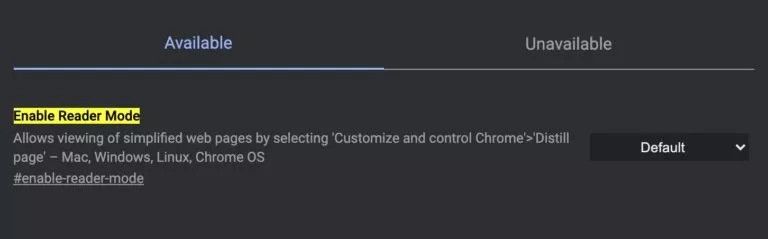
Supported platforms: Mac, Windows, Linux, ChromeOS
URL: chrome://flags/#enable-reader-mode
Fuzzy Search for Tab Search
When you have a lot of tabs open, it might be tough to find the one you want. In Chrome, click on the down arrow on the toolbar to see all open tabs and search for the appropriate one. The Tab Search layout appears and allows you to search across recently closed tabs as well.
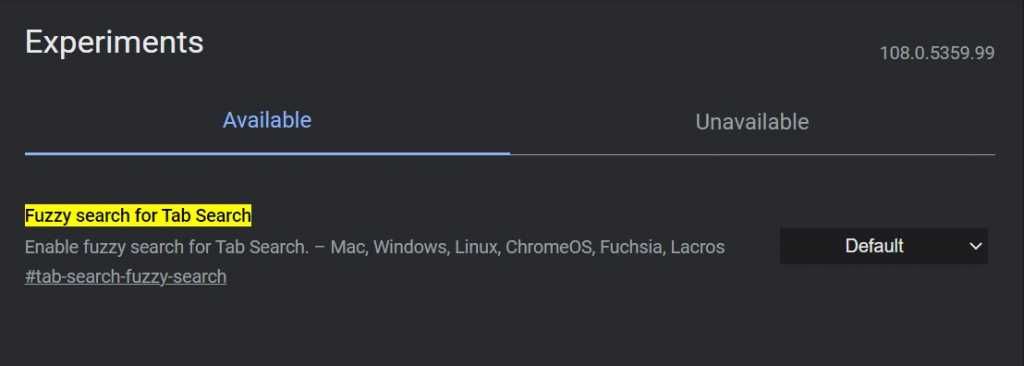
Supported platforms: Mac, Windows, Linux, ChromeOS, Fuchsia, Lacros
URL: chrome://flags/#tab-search-fuzzy-search
How to Enable Flags in Chrome
- Open the Chrome browser on a PC or phone
- Type “chrome://flags” on the Chrome search bar as shown in the image below.

- Hit Enter
- Once you hit the enter button, you will get a list of Experiments (features)

- Each feature will have a title, description, and option for a drop-down menu with Default, Enable and Disable options
- Scroll through the list of features (Under the Available section)
- Click on the drop-down and select “Enable” if you’d like to enable a particular feature
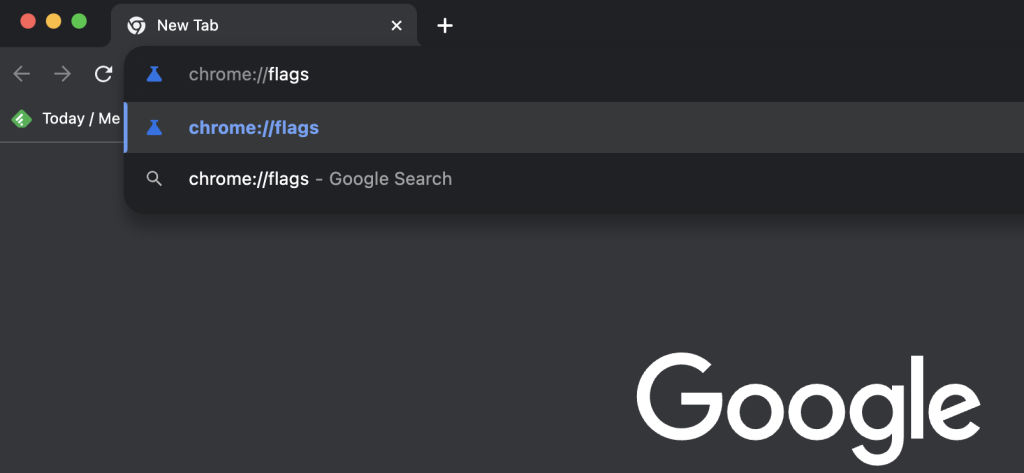
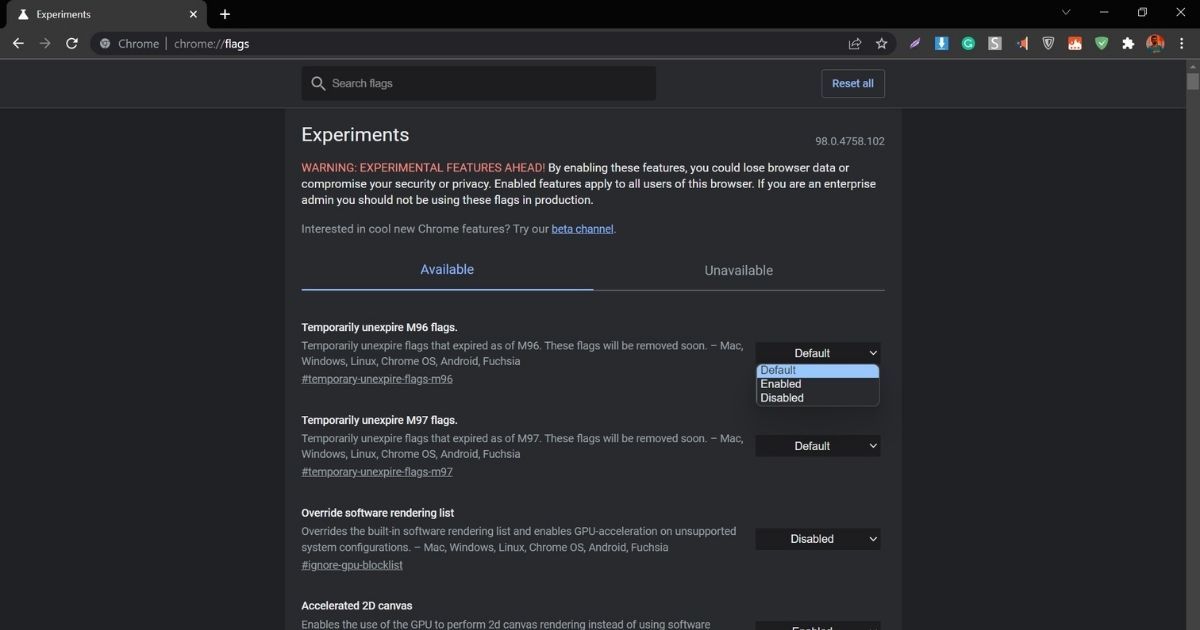
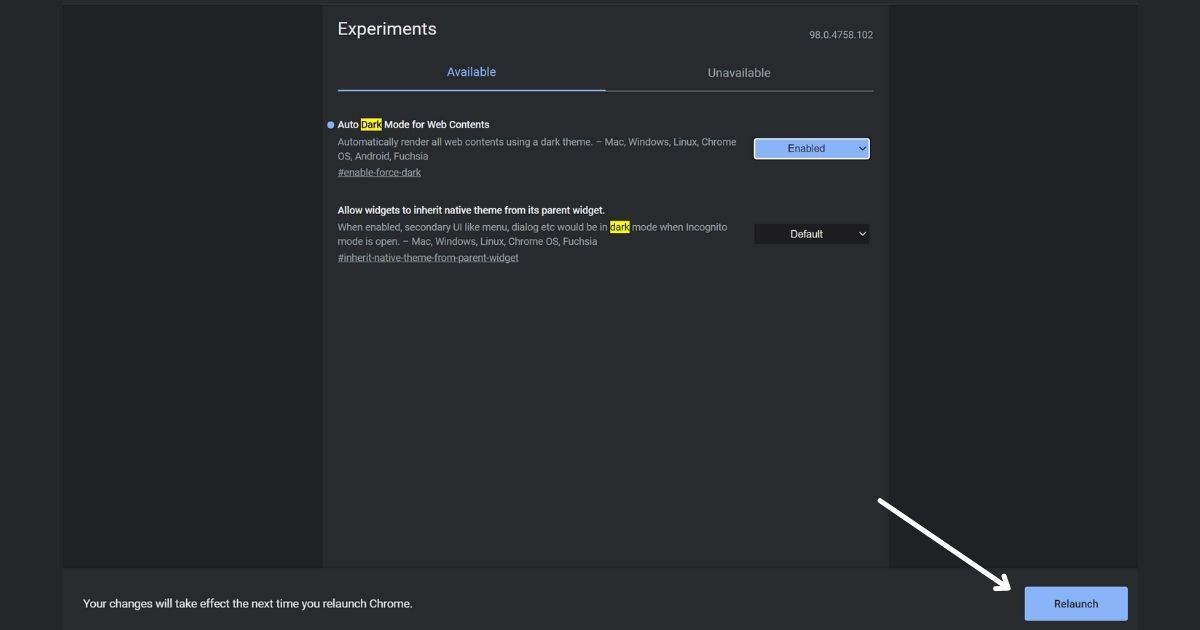
Once you have enabled a Chrome Flag, you will have to click on the Relaunch option at the bottom of your screen to activate that particular feature on Chrome.
How to Disable Flags in Chrome
- Open the Chrome browser on a PC or mobile
- Type “chrome://flags” on the Chrome search bar
- Hit Enter
- Once you hit the enter button, you will get a list of Experiments (features)
- The features that you’ve enabled will be on the top
- Select the “Disable” option from the drop-down menu for features you don’t want to use anymore
MORE STORIES FOR YOU:[Explained] WhatsApp Channels: What is it and How to Create, Join
In case you didn’t get the list of enabled Chrome flags on the top, you can scroll down and search for that particular flag and disable it.
While it is fun and exciting to test out new features on Chrome using the flags, these features can sometimes be buggy or create issues as they’re not completely stable yet. At times, they can also crash your browser.
In case you encounter any of these issues, you can click on the “Reset all” option on the Chrome Flags experiment homepage. If even that doesn’t help, you’re better off reinstalling the Chrome browser on your phone or PC.