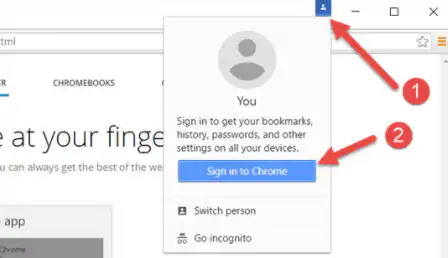
Now you should find it easy to recover passwords saved on Google Chrome in 7 steps in case you forget it and have challenges logging into Gmail.
The truth is that many users of Google Chrome save their passwords by using the Chrome password saving option, however, there are users of Google Chrome who find it extremely difficult to access the passwords.
You can actually retrieve our password saved by using your computer, a mobile phone, or any other electronic device that can serve the same purpose.
How can users save passwords on google chrome?
This is an easy process that can help safeguard your passwords. To do this, choose to save your password when you log in and Google Chrome gives you the option to save. Do not click Never but rather the second option.
The first step is for you to activate “offer to save passwords” on chrome. This feature will automatically pop up a message by asking you “Save Password?”, whenever you are login into or signing up for an account on chrome.
READ: Simplified Guide to Protecting Social Media Accounts from Hackers
CHEAP NON-EXPIRING DATA
Buy affordable data bundles that never expire. Reliable and Instant Delivery!
BUY CHEAP DATA NOWIf after saving the password you are unable to recover it or you do not remember the password. do not worry, just follow the procedure below.
- On your mobile phone or computer, kindly open Google Chrome
- At the top right, click on the More icon (the three dots)
- Now, scroll down and click on Settings
- On your computer, click on the Autofill and click on the Passwords.
- On your phone, click on Passwords
- Your saved passwords will be displayed
- Select the one you want to view password by clicking on the “Show password” icon
- On your computer, you will be asked to enter your windows Password or PIN to view the password
- On your phone, you will be asked to verify your identity by typing your Password or PIN
Get all the best IT tutorials on all subjects by visiting Seotoolswizard.com or Seotoolswizard.com/blog
EXCEL IN YOUR EXAMS
Get instant access to the most reliable Mocks and Marking Schemes.
BUY TOP 2026 BECE MOCKS AND ANSWERSSource: Seotoolswizard.com
