How to encrypt/password protect Microsoft Office Documents
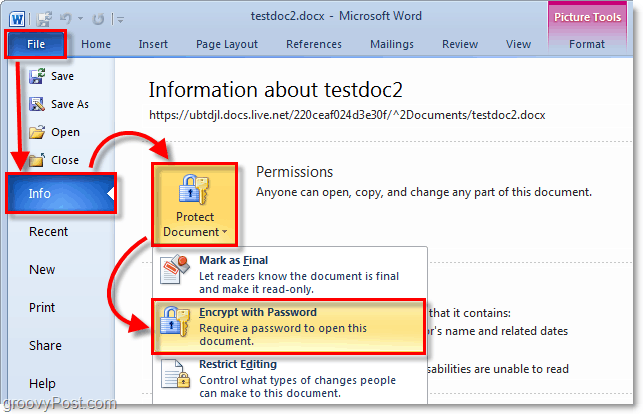
Pass-wording your Microsoft Office Documents is one of the basic steps anyone can take to protect personal and vital business documents. The use of passwords would prevent persons who must not have access to the document from viewing its content.
The question for many who are not too knowledgeable in Microsoft Word is how to encrypt/password protect Microsoft Office Documents. In this Tech Tutorial article, you will not only learn how to put a password on documents, but you will also learn how to remove the password as well.
Before we learn the process, keep in mind the following tips.
1. All password you create will be case-sensitive. That is if you use capital Letter say “A” in a password, to open it, you must type “A” and not “a”
2. The password can be up to a maximum of 15 characters long.
3. If you forget the password, you cannot open the world documented you locked. You are advised to keep a copy of the password for the document in a safe place. For instance in your email or save it as a phone number on your phone.

4. Always great a strong password that you can remember at anytime.
How to password protect Microsoft Office Documents
The process explained here works well for documents from Microsoft 365, Word 2021, Word 2019, Word 2016, and Word 2013
WANT TO PASS 2027 BECE? REGISTER FOR BECE HOME MOCK
Register your ward for Ghana's premier Home Mock service, active since 2022.
- Open the Word document you want to password or lock.
- Go to file
- select Information and then document.
- From here, choose Encrypt with Password.
- Enter your preferred password and type it a second time to confirm that you want to use it
- Click SAVE, to save protected file with the new features
- Try to open the file, when it asks for a password, key in the password you used. If the password works, it means you have safely protected the document
- Attempt to open the Word document.
- The password entry form pops up, enter the correct password to open the document
- Once the document is open, go to File
- Click on Information, then click on Protect Document
- Go to the Encrypt with Password section
- To remove the password, clear the password in the Password box.
- Finally, click OK and save the document.
- Attempt to open the file now. If it does not require a password, you have successfully removed the password.
READ: How to Use YOAST SEO Plugin to Optimize Content for Search Engines

We hope this write-up on how to encrypt/password protect and remove passwords from Microsoft Office Documents has been useful.